
AI Toolkit for Visual Studio Code
Explore the new AI Toolkit for Visual Studio Code, enhancing developer productivity with intelligent code suggestions and automation.
AI Toolkit for Visual Studio Code: A Developer’s Guide to Building Smarter AI Applications
Microsoft’s AI Toolkit for Visual Studio Code has quietly become one of the most comprehensive extensions available for developers building generative AI applications. Whether you’re experimenting with large language models locally, fine-tuning a custom model, or wiring together production-ready AI agents, the toolkit brings a surprising breadth of capability directly into the editor you already use every day.
This post breaks down what the toolkit actually does, what’s changed in recent updates, and where it fits in a modern AI development workflow.
What Is the AI Toolkit?
At its core, the AI Toolkit is a VS Code extension that centralises the messy, fragmented work of AI development into a single interface. It covers model discovery, experimentation, agent creation, evaluation, and fine-tuning. It’s available free on the Visual Studio Marketplace and installs in one click to the VS Code Activity Bar.
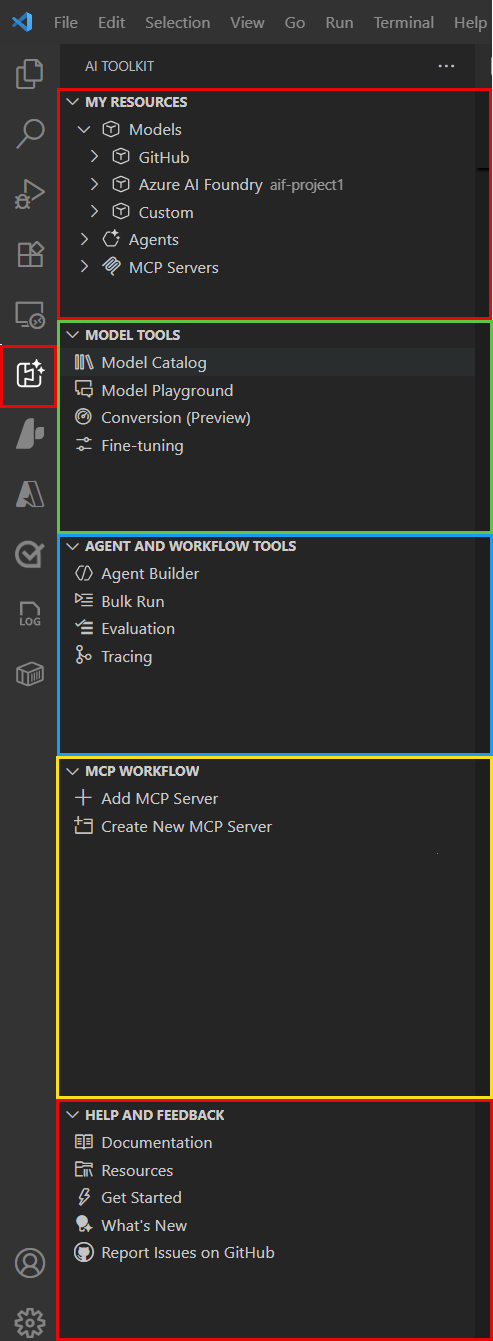 The AI Toolkit activity panel in VS Code, showing the main navigation.
The toolkit is designed to serve a range of developers: from those prototyping a quick chatbot to AI engineers deploying agents at scale. Its model support is notably broad. You can pull models from Microsoft Foundry, GitHub, ONNX, Hugging Face, Ollama, OpenAI, Anthropic, and Google, all managed from one place. You can also bring your own model via any OpenAI-compatible endpoint, including self-hosted models.
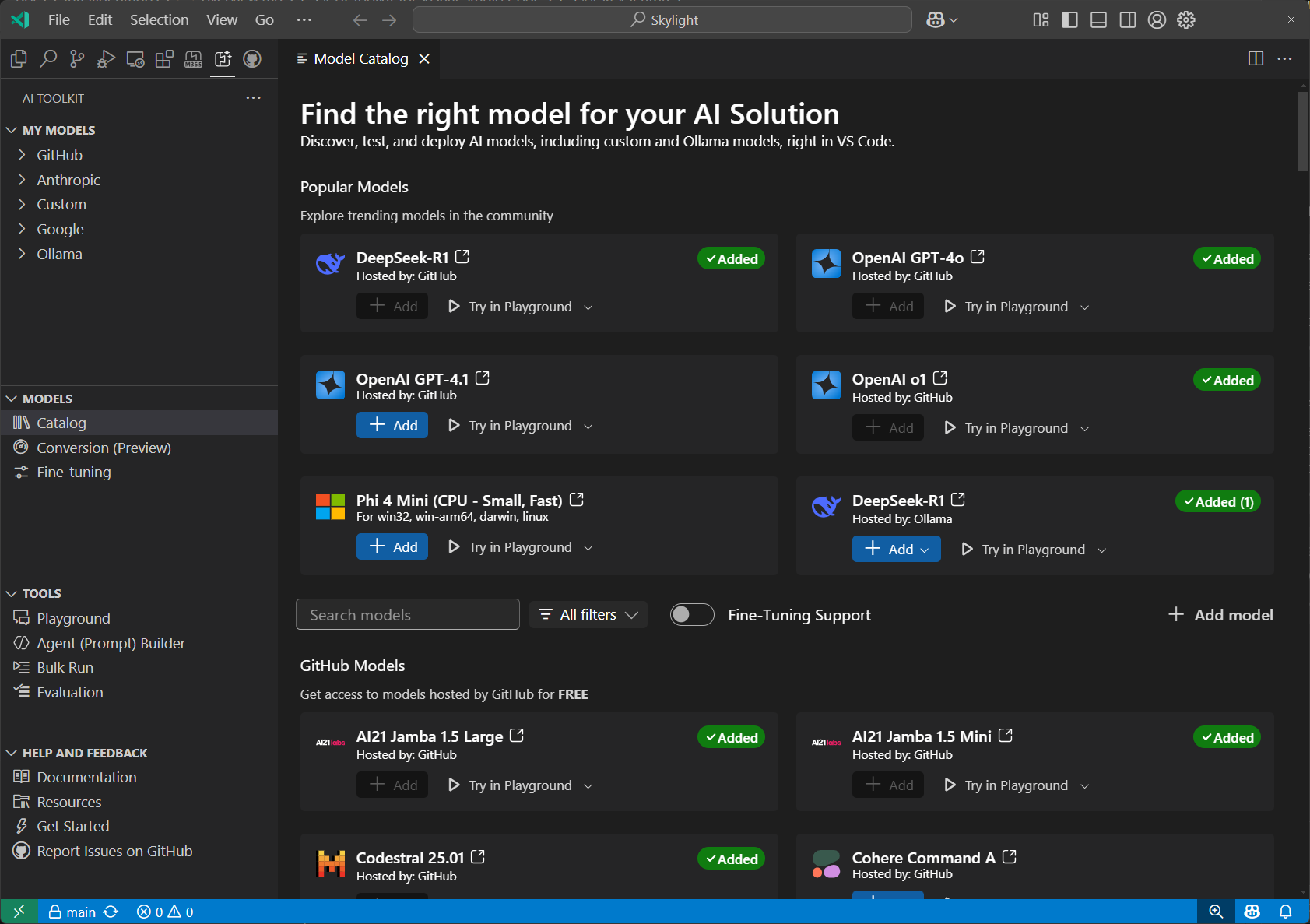 The Model Catalog lets you browse, compare, and download models from multiple providers.
Key Features
Model Playground
The playground is where most developers start. It’s an interactive environment for experimenting with models in real time. You can adjust system prompts, tweak parameters like temperature and max tokens, attach files for multi-modal input, and instantly compare responses across different models side by side.
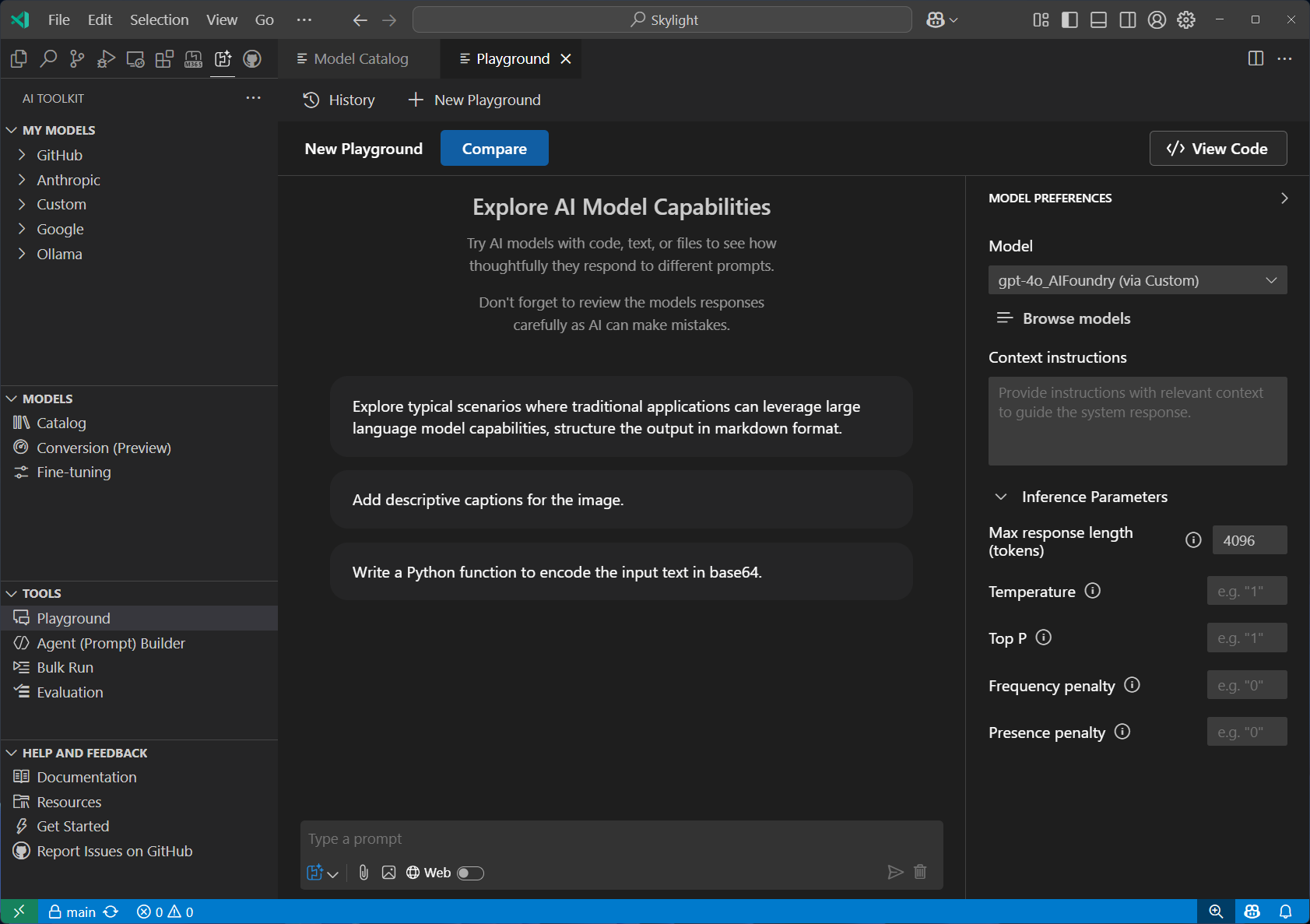 The Playground lets you test prompts and compare model outputs without writing any integration code.
This is particularly useful when making early architectural decisions. Rather than committing to a specific model and calling an API repeatedly, you can run the same prompt against several models simultaneously and evaluate the output before writing a single line of integration code.
Agent Builder and Agent Inspector
Agent development has received significant attention in recent releases. The toolkit now offers two distinct paths for creating agents:
- No-code (Agent Builder): A UI-driven approach where you configure a prompt agent, set up tools, and test interactions without writing code. Good for rapid prototyping and non-engineering stakeholders.
- Code-first: Scaffolds a project from a template (or generates one via GitHub Copilot) giving you full programmatic control over agent logic.
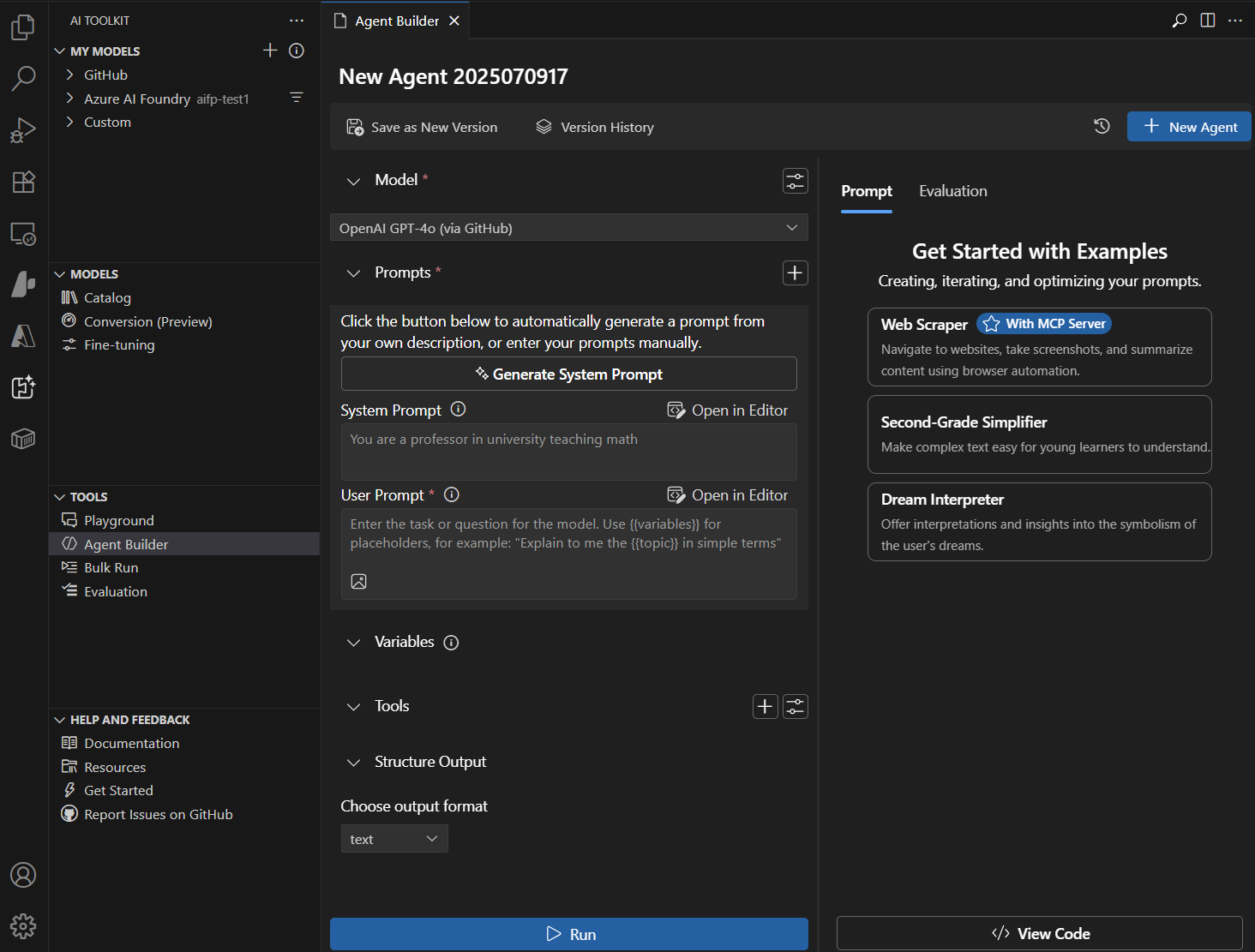 Agent Builder provides a no-code interface for designing, configuring, and testing AI agents.
Once an agent is built, the Agent Inspector brings traditional debugging capabilities to AI workflows: F5 debugging, step-through execution, variable inspection, streaming response visibility, and workflow visualisation. Debugging AI agents has historically been opaque and frustrating. Having breakpoints and execution tracing in the same IDE where you write the code removes a significant amount of friction.
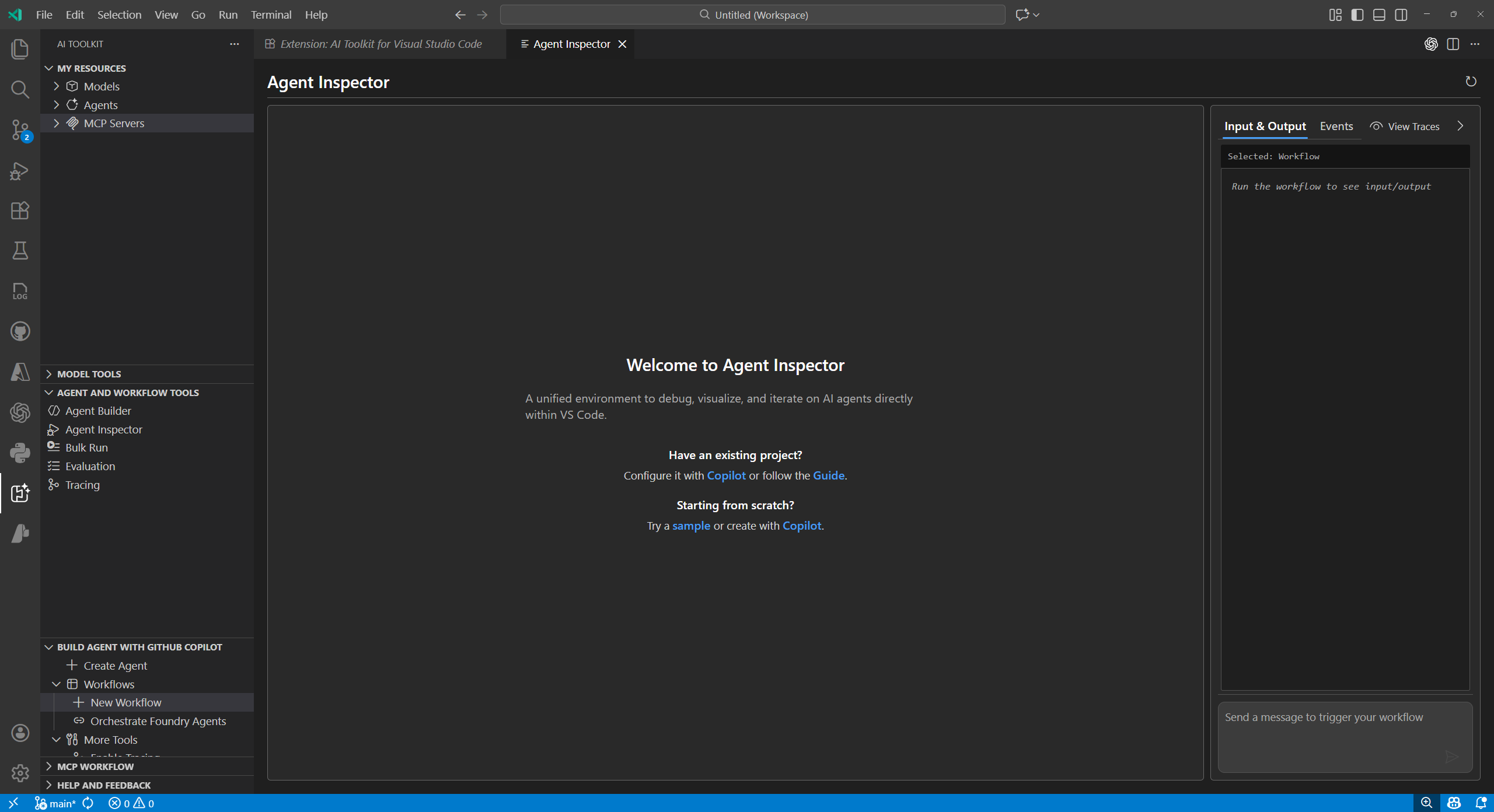 Agent Inspector brings full debugging support to AI agents, including step-through execution and streaming response visibility.
MCP Tool Integration
The toolkit includes a Tool Catalog for discovering, configuring, and managing agent tools, including local stdio MCP (Model Context Protocol) servers and tools from the public Foundry catalog. This makes it straightforward to connect agents to external data sources, APIs, and services without building bespoke integrations from scratch.
Bulk Testing and Evaluation
Prompt testing at scale is often an afterthought until something breaks in production. The toolkit’s Bulk Run feature lets you execute batch prompt tests across multiple models simultaneously, running through a dataset of inputs and collecting outputs in one pass.
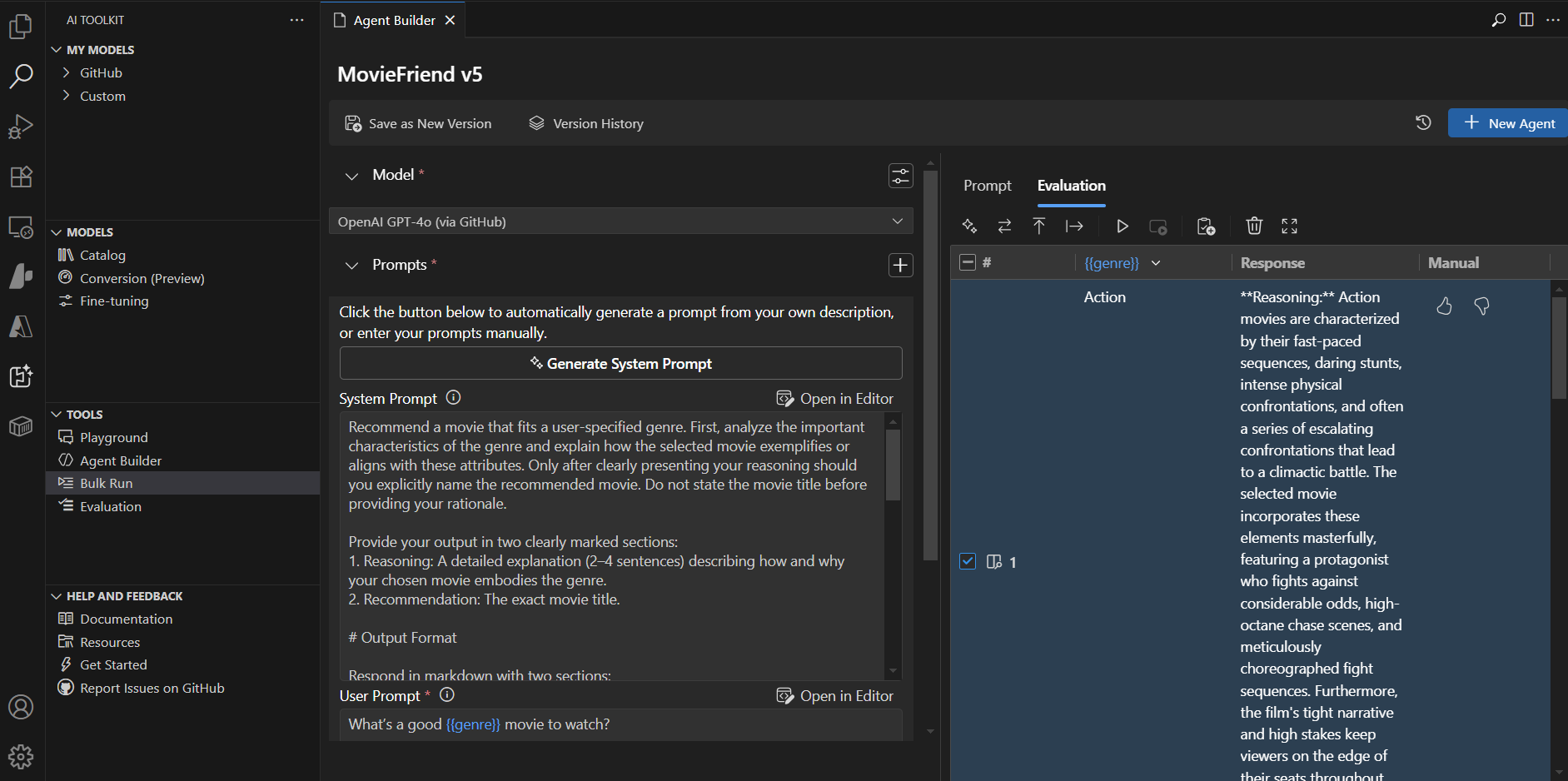 Bulk Run lets you test a prompt across multiple models and inputs in one go.
Beyond that, the Model Evaluation framework supports built-in evaluators (F1 score, relevance, similarity, coherence) so you can measure model performance against structured criteria rather than eyeballing responses. More recently, the toolkit migrated its agent evaluation to the pytest-agent-evals SDK, which slots naturally into existing Python testing workflows.
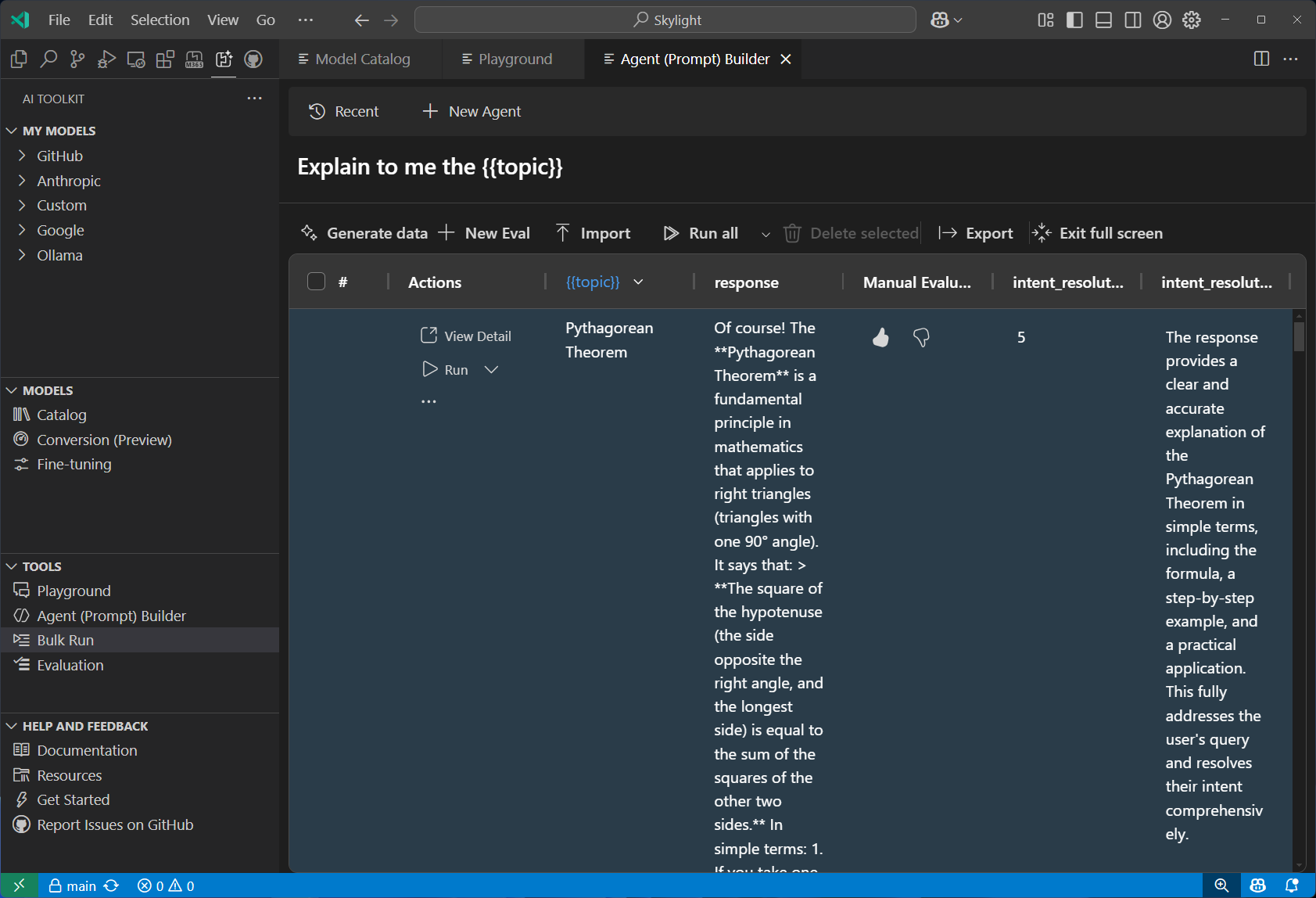 Model Evaluation lets you score outputs against structured criteria using built-in or custom evaluators.
Fine-Tuning and Model Conversion
For teams that need to adapt a base model to a specific domain, the toolkit supports fine-tuning with GPU acceleration, either locally or via Azure Container Apps. It also includes model conversion and quantisation tools, which are particularly useful when optimising models for deployment on NPU-enabled devices or resource-constrained environments.
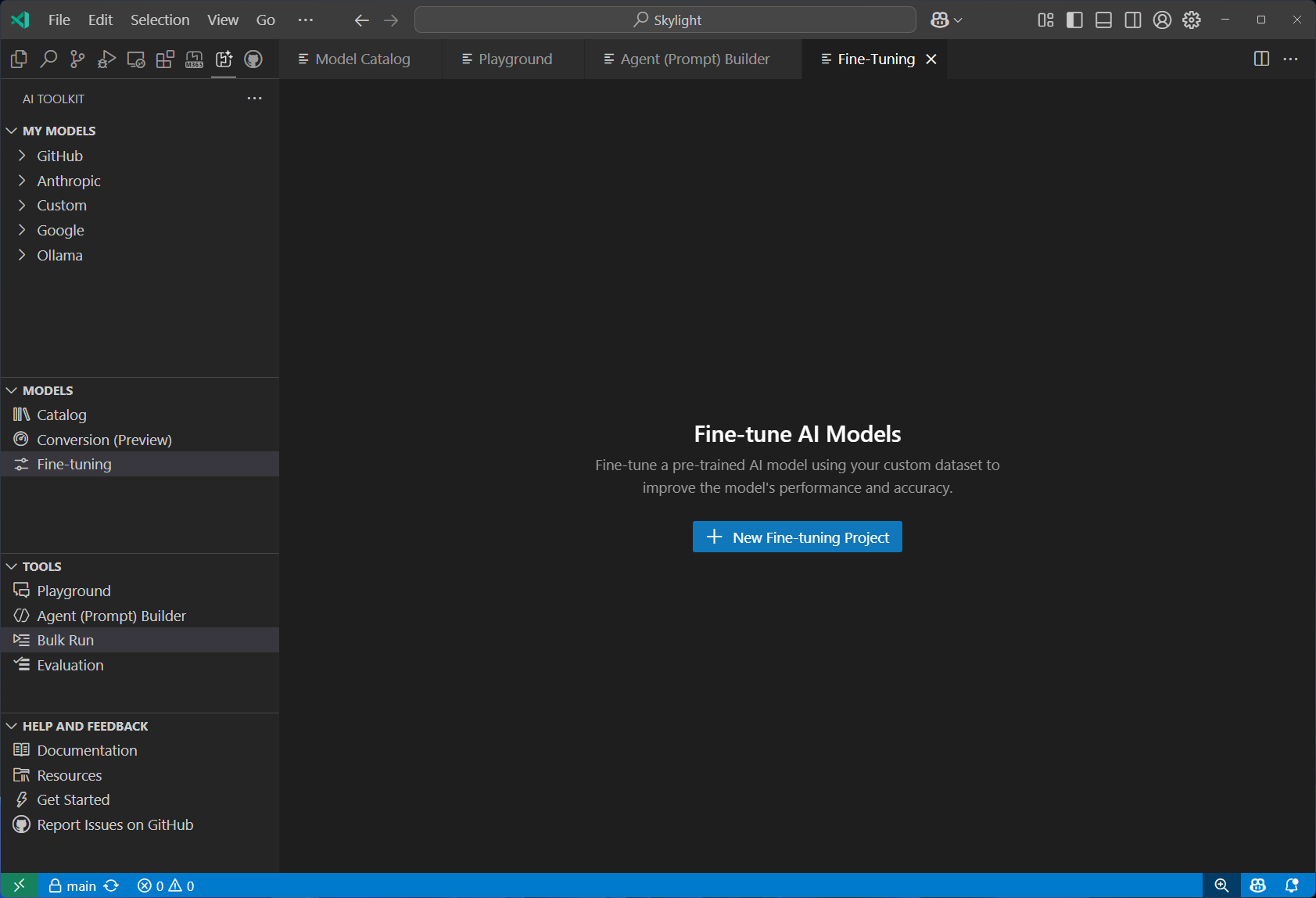 Fine-tuning support allows you to adapt models to your domain, with GPU acceleration available locally or on Azure.
What’s New in 2026
The March 2026 release (v0.32.0) brought a significant UX consolidation. Microsoft merged the previously separate Foundry extension sidebar directly into the AI Toolkit, creating a unified “My Resources” view that combines local and Foundry-hosted resources in one panel. The Foundry extension itself is being retired on June 1st, 2026, so this migration is worth being aware of if you currently use both extensions.
The developer tools panel now supports two switchable layouts: “Group by Lifecycle” and “Group by Resource”, making it easier to navigate depending on whether you’re thinking in terms of the development pipeline or the types of assets you’re managing.
GitHub Copilot integration has also deepened. The toolkit now leverages the same open-source Microsoft Foundry skill used by GitHub Copilot for Azure, and it installs and updates automatically without any manual configuration.
Where It Fits in Your Workflow
The AI Toolkit is not a replacement for your cloud infrastructure, your CI/CD pipeline, or your observability stack. What it does well is compress the inner development loop: the cycle of experimenting, iterating, and validating that happens before you’re ready to deploy anything.
For teams already working in VS Code, the appeal is straightforward. You don’t need to context-switch between a browser-based playground, a separate fine-tuning notebook, and a local terminal just to make a change and test it. The toolkit consolidates that into the editor. For individual developers, especially those working with local models on machines with NPUs, it provides tooling that would otherwise require significant manual setup.
The toolkit is still evolving rapidly. The pace of updates over the past year suggests Microsoft is treating it as a strategic surface for AI development tooling, with a clear direction toward making it the central workspace for the full AI application lifecycle, from model selection to agent deployment.
Getting Started
If you haven’t tried it yet, installation is straightforward:
- Open VS Code and go to the Extensions panel (
Ctrl+Shift+X/Cmd+Shift+X) - Search for “AI Toolkit”
- Install the extension published by Microsoft
- The AI Toolkit icon will appear in the Activity Bar
From there, the Model Catalog is a good starting point. Browse available models, download one locally, and open it in the playground to get a feel for the interface.
Full documentation is available at code.visualstudio.com/docs/intelligentapps/overview.